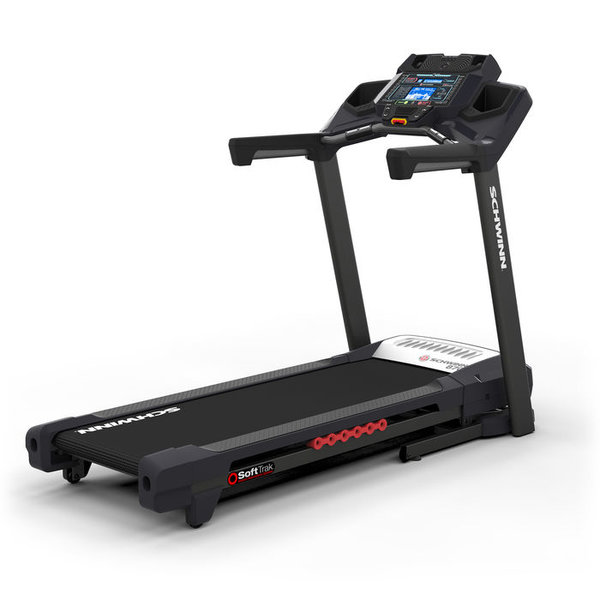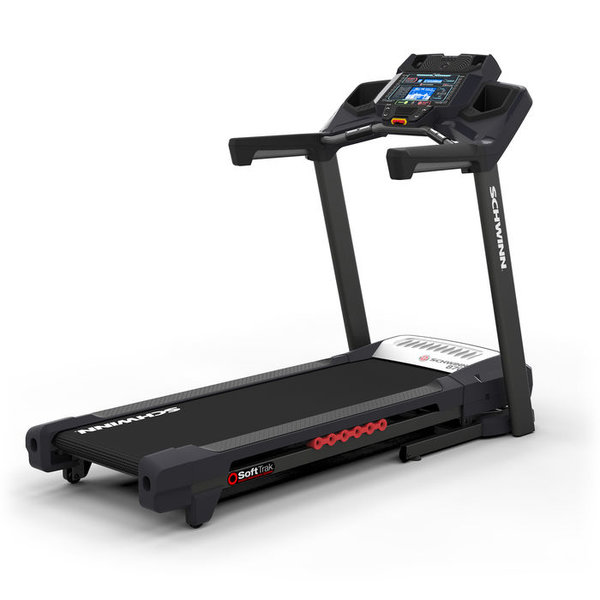
QZ now includes Schwinn OMNI treadmill support for the Schwinn 570T and T870. The merged QZ implementation routes these Bluetooth names through the existing Nautilus treadmill path, decodes their live speed and incline packet, and makes the data available to QZ’s virtual treadmill bridge.

Table of Contents
Which Schwinn treadmills were added?
PR #5117 adds support for the Schwinn 570T and Schwinn T870 Bluetooth identities. The 570T is also the model marketed as the 870 in some electrical regions, so this is one compatibility article for the two commercial names covered by the PR rather than two separate QZ drivers.
The implementation was merged into public QZ master in commit 7396eb7. The PR records parser tests and a source build, while noting that no physical Schwinn treadmill was available for live QZ validation. This article therefore describes the merged protocol/setup compatibility accurately, without presenting it as a private field test.
What the Schwinn OMNI path provides
| Capability | Result in QZ |
|---|---|
| Bluetooth discovery | QZ recognizes Schwinn treadmill names beginning with SCHWINN T and SCHWINN 570T and sends them through the existing Nautilus treadmill handler. |
| Live speed | The 12-byte live packet uses bytes 3–4 as little-endian speed in mph × 100; QZ converts that value to km/h for its treadmill metrics. |
| Live incline | QZ decodes the incline value from byte 6 of the OMNI packet. |
| Virtual treadmill | QZ reuses its existing virtual treadmill bridge so a compatible training app can receive the Schwinn data through QZ. |
| Physical speed/incline control | The PR keeps both control methods disabled because no native speed or incline command was captured. Use the treadmill console for those changes while QZ supplies the telemetry bridge. |
How to use the compatibility
- Install a QZ build that contains merged PR #5117 or a later release containing that change.
- Turn on the Schwinn treadmill and leave its Bluetooth advertising available.
- Start QZ and allow the automatic Bluetooth discovery path to identify the Schwinn OMNI treadmill.
- Confirm that speed and incline update in QZ while the belt is moving or the console reports a grade.
- Enable QZ’s virtual treadmill output when using a second device or an external training application.
- In Zwift or another compatible app, pair the QZ virtual treadmill rather than trying to make both QZ and the app own the physical treadmill connection.
- Change speed and incline from the Schwinn console; the PR’s QZ path is intentionally telemetry-focused.
The wider QZ feature set
QZ is more than a Bluetooth-to-app relay. The exact device result depends on the driver and on the target application, so the table below separates general QZ capabilities from the Schwinn-specific path added by PR #5117.
| Area | What QZ can provide | How it applies here |
|---|---|---|
| UI and profiles | Custom tile order and visibility, multiple user/device profiles, and UI zoom customization. | Available as QZ app features around the treadmill session. |
| Treadmill metrics | Live speed, pace, distance, calories, incline and other values reported or calculated by the selected profile. | Confirmed in code for this path: speed and incline are decoded from the Schwinn OMNI 12-byte live packet. |
| Heart rate | Bluetooth, ANT+ and Apple Watch heart-rate sources plus customizable heart-rate zones. | QZ can add a configured heart-rate source to the session; it is separate from the OMNI treadmill packet. |
| Virtual treadmill and apps | Virtual treadmill/FTMS output for Zwift, Wahoo RGT, Rouvy, VzFit, BitGym and other compatible FTMS applications. | The merged PR reuses QZ’s existing virtual treadmill bridge for the Schwinn telemetry. |
| Peloton workflows | QZ has Peloton-oriented metric, heart-rate and auto-workout workflows where the selected device profile supports the required data and control. | Do not read this as Schwinn OMNI speed/incline control: this PR leaves both physical control paths disabled. |
| Standalone workouts | QZ can record sessions and provide video, GPX route following with 2D/3D maps, ZWO, XML, heart-rate-following and random workouts where the selected driver supports the needed control. | Recording and telemetry display are the relevant Schwinn use; control-driven workout modes need a driver with proven actuator writes. |
| Health and exports | Email reports, Strava upload, Apple Health/HealthKit, Google Health Connect, Garmin FIT activity upload and ANT+ treadmill speed/distance broadcasting on supported Android hardware. | These are QZ integrations around the workout, not native Schwinn console features. |
| Automation and advanced integrations | MQTT, Open Sound Control, text-to-speech, Wahoo DirCon and other platform-dependent QZ integrations. | Use them for monitoring, automation or audio feedback when enabled on the QZ platform. |
Apps and recording workflows
With the virtual treadmill enabled, QZ can pass the supported treadmill telemetry to Zwift, Wahoo RGT, Rouvy, VzFit, BitGym and other applications that accept the relevant virtual-treadmill or FTMS data. QZ can also be used standalone for live tiles, charts and workout recording. The available app fields depend on what each application accepts from its virtual treadmill connection.
For completed-workout workflows, QZ can create reports and exports around the session, including Strava upload, Garmin FIT activity upload, Apple Health/HealthKit and Google Health Connect. On supported Android hardware, QZ can also retransmit treadmill speed and distance through ANT+ SDM/footpod so a compatible Garmin watch can record those metrics live.
Subscription boundary
QZ is a separate bridge and workout layer. Any subscription, paid plan or premium content offered by Zwift, Rouvy, Garmin, Strava or another training service remains governed by that provider; QZ does not remove those providers’ billing requirements.
Troubleshooting checklist
- Use a current QZ build containing the merged Schwinn OMNI implementation.
- Close other Bluetooth treadmill apps before starting QZ.
- Check that the treadmill is advertising its Schwinn Bluetooth identity and that Bluetooth permissions are enabled.
- Connect the external app to QZ’s virtual treadmill, not directly to the physical treadmill while QZ is acting as the bridge.
- If speed or incline stays unchanged, verify the live treadmill packet is arriving in QZ before checking the external app.
- Use the Schwinn console for speed and incline changes because the merged OMNI path does not send those physical commands.
If something does not work as expected, send an email to Roberto.viola83@gmail.com and Roberto will help you check the setup.